If you’re hustling on your phone in Nigeria, every megabyte counts. The right data saving tools Nigeria side‑hustlers use can slash your browsing costs by up to 60%, freeing up budget for income‑generating tasks like freelance research, app testing, or managing multiple marketplaces simultaneously. In this post, we’ll dive into the best browsers that help you save data, explain how they work, share firsthand tips, and compare them side‑by‑side so you can pick the perfect one for your hustle.
Why Data Savings Matter for Phone-Based Hustles
Unlike office Wi‑Fi, mobile data in Nigeria can be expensive and unreliable. As a student selling on WhatsApp, a freelancer researching clients, or a tutor hosting video calls, you need your data to last. Consider these realities:
- High Costs: Data bundles can run ₦500–₦1,000 for just 1–2 GB, which disappears quickly with heavy browsing.
- Productivity Impact: Slow or throttled connections can waste time, reducing billable hours.
- Opportunity Cost: Every naira you save on data is more profit in your pocket.
Industry reports have shown that optimized browsers reduce page weight and background activity, saving 20%–60% of data compared to standard browsers. That extra savings translates directly into more time online and more earnings.
What to Look for in a Data‑Saving Browser
Not all “lite” browsers deliver equally. When choosing a browser, side‑hustlers should consider:
- Compression Technology: How effectively the browser compresses images, scripts, and pages.
- Ad & Tracker Blocking: Ads and trackers consume significant data—blocking them saves both data and load time.
- Offline Modes: Reading modes or offline caching that let you view content without reloading.
- User Experience: Speed, stability, and support for essential features (bookmarks, tab management).
- Compatibility: Works on low‑end Android phones and with older Android versions common in Nigeria.
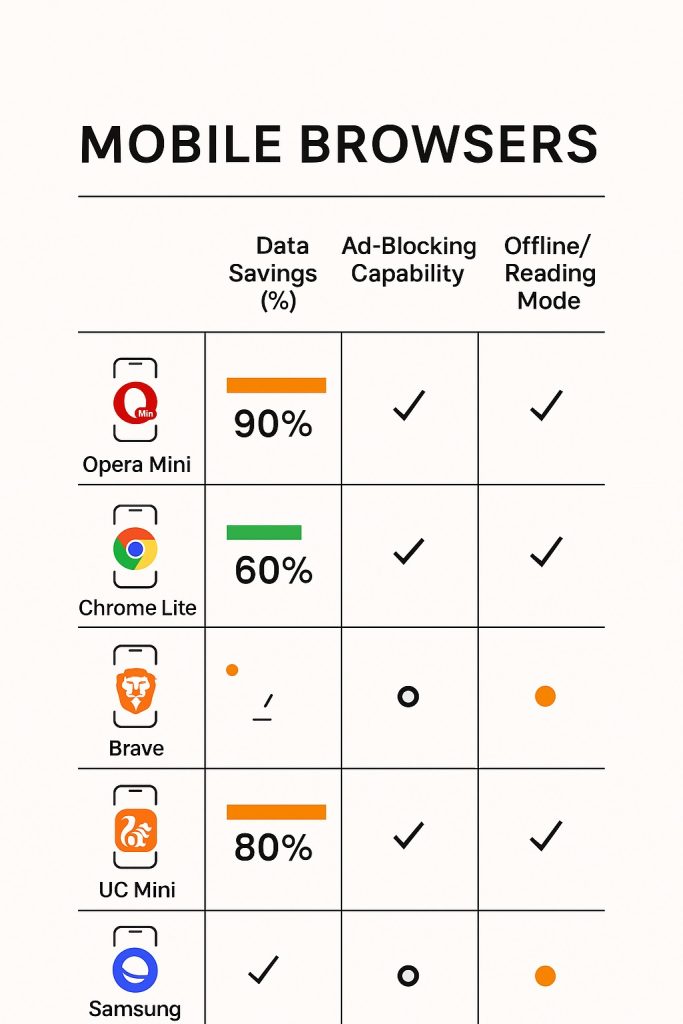
Top 5 Data‑Saving Browsers for Nigerian Hustlers
1. Opera Mini – The Original Data Saver
Features & Benefits:
- High Compression: Up to 90% data savings in “Extreme” mode by routing traffic through Opera’s servers.
- Ad Blocking: Built‑in ad blocker cuts out banners and video ads.
- Offline Pages: Save entire web pages for later reading without connectivity.
- Smart Page: Pre‑downloads important parts of sites you visit often, reducing reload costs.
How to Use on Phone:
- Install Opera Mini from the Google Play Store.
- When you first launch, choose “Extreme” data savings mode.
- Enable the ad blocker in settings to boost savings further.
Real‑World Tip: A Lagos‑based freelance writer reported reducing her monthly data bill by 50% when researching and submitting drafts via Opera Mini.
2. Google Chrome’s Lite Mode
Features & Benefits:
- Simple Activation: Toggle Lite mode in settings—no separate app needed.
- Data Savings: Up to 60% savings by compressing text and images.
- Enhanced Security: Google’s servers scan pages for malware before delivery.
- Faster Loading: Pages load quicker on slow connections.
How to Use on Phone:
- Open Chrome and tap the three‑dot menu → Settings → Lite mode.
- Turn Lite mode on.
- Enjoy data savings automatically as you browse.
Insider Insight: For side‑hustlers already using Chrome for bookmarks and synced devices, Lite mode is a friction‑free way to save data without switching browsers.
3. Brave Browser – Data & Privacy Focus
Features & Benefits:
- Built‑In Ad & Tracker Blocking: Blocks ads, trackers, and third‑party cookies by default.
- Bandwidth Savings: Estimates show 20%–40% data reduction versus standard Chrome.
- HTTPS Everywhere: Ensures secure connections, preventing data leaks.
- Rewards Program: Earn Basic Attention Token (BAT) by opting into privacy‑respecting ads.
How to Use on Phone:
- Install Brave from the Google Play Store.
- During setup, enable Shields (Brave’s ad blocker).
- In settings, review site‑specific shield configurations to maximize speed.
Use‑Case Scenario: A Nigerian digital marketer uses Brave to research competitors across multiple tabs, noting page loads are noticeably quicker and consume less data than Chrome.
4. UC Browser Mini – Fast & Customizable
Features & Benefits:
- Cloud Acceleration: Renders pages on UC’s servers before delivery, boosting speed and reducing data.
- Data Saving Modes: Choose from “Data Save” or “Speed Mode” for different trade‑offs.
- Video Compression: Optimizes video streams to use less data.
- Night Mode & Gesture Controls: Improves usability in low‑light and one‑handed operation.
How to Use on Phone:
- Download UC Browser Mini from the Google Play Store.
- Select Data Save mode in the navigation drawer.
- Tap the video icon in‑browser to enable video compression.
Local Insight: Many Abuja-based e‑commerce sellers prefer UC Mini for quickly uploading product photos and checking orders, reporting 30% less data usage than full‑size browsers.
5. Samsung Internet – Hidden Data Saver
Features & Benefits:
- Turbo Mode: Optional add‑on that compresses web pages (similar to Opera Mini).
- Ad Blockers: Support for popular ad‑block extensions.
- Smart Anti‑Tracking: Blocks known tracking domains to reduce data consumption.
- Secure Wi‑Fi Mode: Encrypts data on public networks—no VPN needed for basic security.
How to Use on Phone:
- Install Samsung Internet from the Google Play Store.
- Go to Settings → Labs → enable Turbo Mode.
- Add an ad‑block extension (like AdBlock Fast) for extra savings.
Why It Works: Even on non‑Samsung devices, the browser runs smoothly and delivers about 25% data savings when configured properly.
Side‑by‑Side Comparison Table
| Browser | Data Savings | Ad Blocking | Offline Mode | Ease of Setup | Best For |
|---|---|---|---|---|---|
| Opera Mini | Up to 90% | Yes | Yes | One‑tap install | Heavy research & reading |
| Chrome Lite | Up to 60% | No | Limited | Built into Chrome | Users who prefer Chrome ecosystem |
| Brave | 20%–40% | Yes | No | Simple add‑on | Privacy‑aware marketers |
| UC Browser Mini | 40%–70% | Limited | No | One‑tap install | Video‑heavy browsing |
| Samsung Internet | ~25% | Via add‑on | No | Labs settings | Secure public Wi‑Fi browsing |
Key Insights & Tips
- Combine Browsers: Use Opera Mini for heavy research, Brave for privacy, and Chrome Lite for everyday browsing.
- Customize Settings: Always enable ad blockers and compression modes.
- Monitor Data Use: Android’s built‑in data saver can restrict background usage for all apps—combine it with data‑saving browsers for maximum effect.
- Pre‑load & Offline Read: Save articles in Opera Mini’s offline mode when on Wi‑Fi, then read later without consuming mobile data.

Conclusion
Data is money for phone‑based hustles—every byte saved is more budget for tasks that earn you naira. Whether you choose Opera Mini for maximum compression, Brave for privacy, or Chrome Lite for convenience, start testing today and track your savings.
Next Steps:
- Download your preferred browser from the Play Store links above.
- Enable compression and ad‑blocking modes in settings.
- Challenge yourself: Record your data usage for one week and compare savings.
Join the conversation: Which data saving tools Nigeria hustlers swear by? Drop your favorite in the comments, and subscribe for more insider tips on stretching your data and maximizing your mobile earnings!